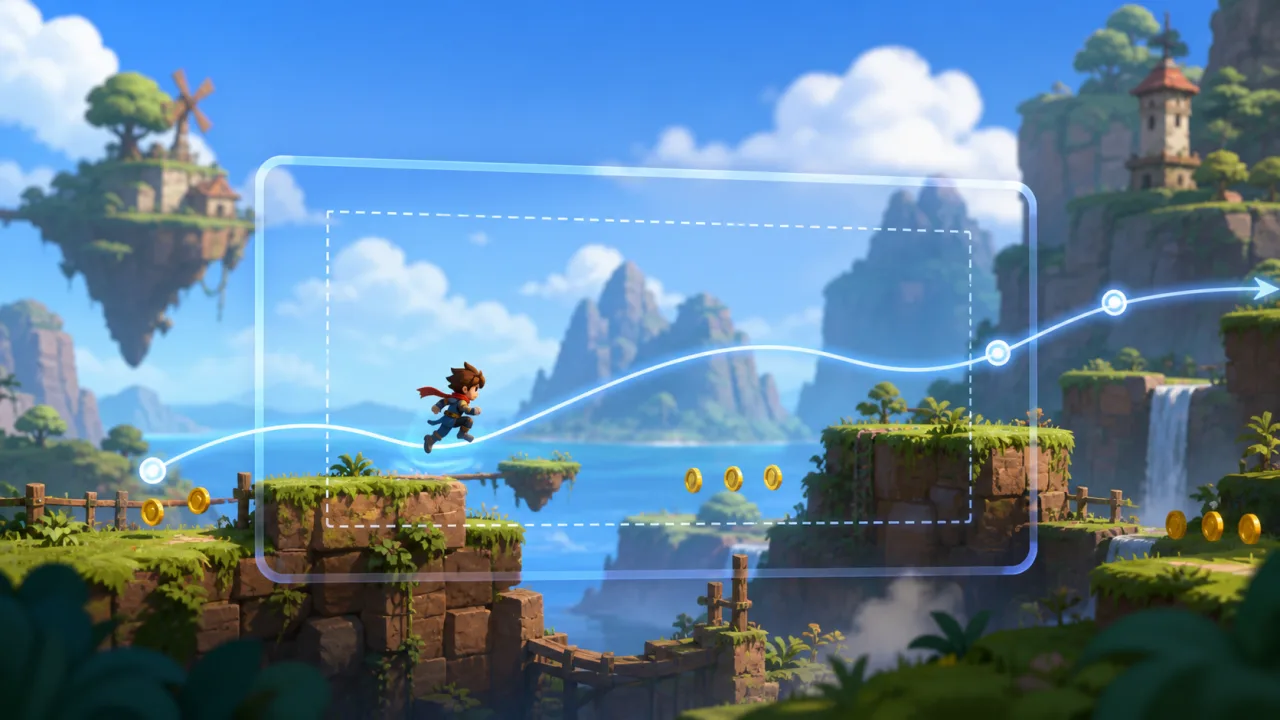
Excerpt: A good game camera helps players read movement without feeling delayed, jittery, or motion-sick. This guide builds a smooth HTML5 camera with dead zones, look-ahead, bounds, zoom, shake, parallax, and frame-rate-independent motion.
The camera is the player's window into the game. A basic implementation places the viewport directly on the player every frame, but that often magnifies tiny animation changes, exposes uneven simulation timing, and leaves too little space in the direction of travel. A production camera separates the desired framing from the rendered camera position.
Use a camera state and a camera target
Store world-space camera position, velocity, zoom, rotation, and viewport size in a dedicated object. Each update, gameplay rules calculate a desired target. A smoothing step then moves the actual camera toward that target. Rendering subtracts the camera's world position from every visible object.
Keep gameplay simulation on a fixed timestep, then interpolate camera inputs for rendering. This prevents a smooth camera from following a visibly jittery target when the render rate and simulation rate differ.
desiredX = targetX + lookAheadX
desiredY = targetY + lookAheadY
camera.x = smoothDamp(camera.x, desiredX, velocityX, smoothTime, dt)
camera.y = smoothDamp(camera.y, desiredY, velocityY, smoothTime, dt)
Add a dead zone
A dead zone is a rectangle around the camera center where the player can move without shifting the viewport. When the target leaves that rectangle, move the desired camera only enough to place the target back on its nearest edge. This keeps idle animation, small corrections, and landing recoil from constantly moving the whole scene.
Size the zone for the genre. Platformers often allow more vertical freedom than horizontal freedom. Top-down action games can use a compact centered zone, while exploration games may use a larger zone for calmer motion. Visualize the zone during development.
Look ahead in the direction of travel
Players need to see where they are going. Derive a look-ahead offset from stable intent, such as movement input or filtered velocity, rather than the character sprite's facing frame. Ease the offset when direction changes so the camera does not snap across the player.
- Clamp the maximum look-ahead distance.
- Use separate horizontal and vertical tuning.
- Reduce look-ahead while airborne if it hides landing space.
- Delay rapid reversals by a few frames or filter the input.
- Allow scripted encounters to override look-ahead explicitly.
Touch input can change abruptly, so coordinate the filter with your touch-friendly control system. Gamepad stick magnitude can scale the offset naturally.
Choose smoothing that behaves consistently
A simple linear interpolation with a fixed fraction per frame changes behavior with frame rate. Use an exponential form or a damped-spring function that accepts delta time. Exponential smoothing can use a factor such as 1 - exp(-responsiveness × dt). A critically damped spring adds velocity state and reaches the target quickly without overshooting.
Clamp unusually large delta times after tab restoration or a frame hitch. Measure camera-update cost and hitch behavior through frame-time telemetry.
Clamp the camera to level bounds
After calculating the desired position, constrain the visible rectangle to the playable world. The camera center cannot approach the boundary closer than half the viewport size divided by zoom. If the level is smaller than the viewport, center it instead of producing contradictory minimum and maximum clamps.
halfWidth  = viewportWidth  / (2 * zoom)
halfHeight = viewportHeight / (2 * zoom)
camera.x = clamp(camera.x, worldLeft + halfWidth, worldRight - halfWidth)
camera.y = clamp(camera.y, worldTop + halfHeight, worldBottom - halfHeight)
Clamp the desired target before smoothing when you want the camera to settle naturally at an edge. Clamp the final camera as well to prevent numerical drift from exposing empty space.
Handle rooms and camera zones
Large games rarely use one global rule. Define camera zones with bounds and settings for dead-zone size, smoothing time, zoom, vertical bias, and look-ahead. Blend between zones rather than switching instantly. Boss arenas may lock to a room; corridors may constrain one axis; cinematic areas may follow a spline.
If zone lookup becomes expensive in a large world, reuse the broad-phase ideas from a spatial hash grid to find nearby camera volumes.
Support zoom without breaking framing
Zoom changes the visible world size, so interpolate it with the same care as position. Choose a focus point—usually the player, a midpoint between important actors, or a scripted anchor—and adjust camera position so that focus stays visually stable while zoom changes.
For two-player framing, compute a padded bounding box around both targets, derive the zoom needed to fit it, and clamp to readable limits. Use hysteresis so tiny distance changes do not make the camera breathe continuously.
Layer parallax in world space
Parallax backgrounds move by a fraction of camera translation. Far layers use a small factor; near foreground layers use a larger factor and may exceed one. Base the calculation on camera world position rather than accumulated screen deltas so layers remain stable after teleports, checkpoints, and scene reloads.
Round only the final draw position if pixel-art rendering requires it. Rounding camera state itself can create low-speed stutter.
Add camera shake as a separate effect
Do not write shake directly into the base camera position. Generate a temporary offset from trauma or event intensity, apply frequency-shaped noise, and add it after follow, bounds, and zoom are solved. Decay the amplitude over time and cap the maximum displacement.
Respect reduced-motion preferences. Offer a slider or disable shake entirely when the player's reduced motion setting is active. Pair impact feedback with responsible haptics so neither channel has to become excessive.
Teleport and respawn safely
When the target teleports, choose deliberately between a hard camera cut, a short transition, or a cinematic pan. Clear spring velocity on hard cuts; otherwise the old velocity can fling the camera past the new location. Reset parallax anchors and camera-zone state at the same time.
Checkpoint restoration should save gameplay state rather than transient shake or smoothing velocity. The principles in reliable checkpoint systems help keep respawns deterministic.
Cull with the final camera rectangle
Build the visible world rectangle from the final camera position, zoom, and a small margin. Render only objects intersecting it. Pool temporary lists with object pooling when a busy scene would otherwise allocate every frame.
Debugging and test checklist
- Draw the camera center, target, dead zone, level bounds, and active zone.
- Test walking, sprinting, jumping, falling, reversing, dashing, and stopping.
- Test 30, 60, 90, 120, and 144 Hz rendering with the same simulation.
- Force frame hitches and browser tab restoration.
- Check every aspect ratio and safe-area layout used by mobile devices.
- Test levels smaller than the viewport and targets near corners.
- Verify teleport, respawn, room transitions, and zoom changes.
- Test full, reduced, and disabled camera shake.
- Profile culling, parallax layers, and camera-zone lookup.
Final takeaway
A smooth camera is a small system with several independent layers: target selection, dead zone, look-ahead, time-based smoothing, bounds, zones, zoom, parallax, and optional shake. Keeping those layers separate produces predictable tuning and lets HTML5 games feel responsive without making the viewport nervous.