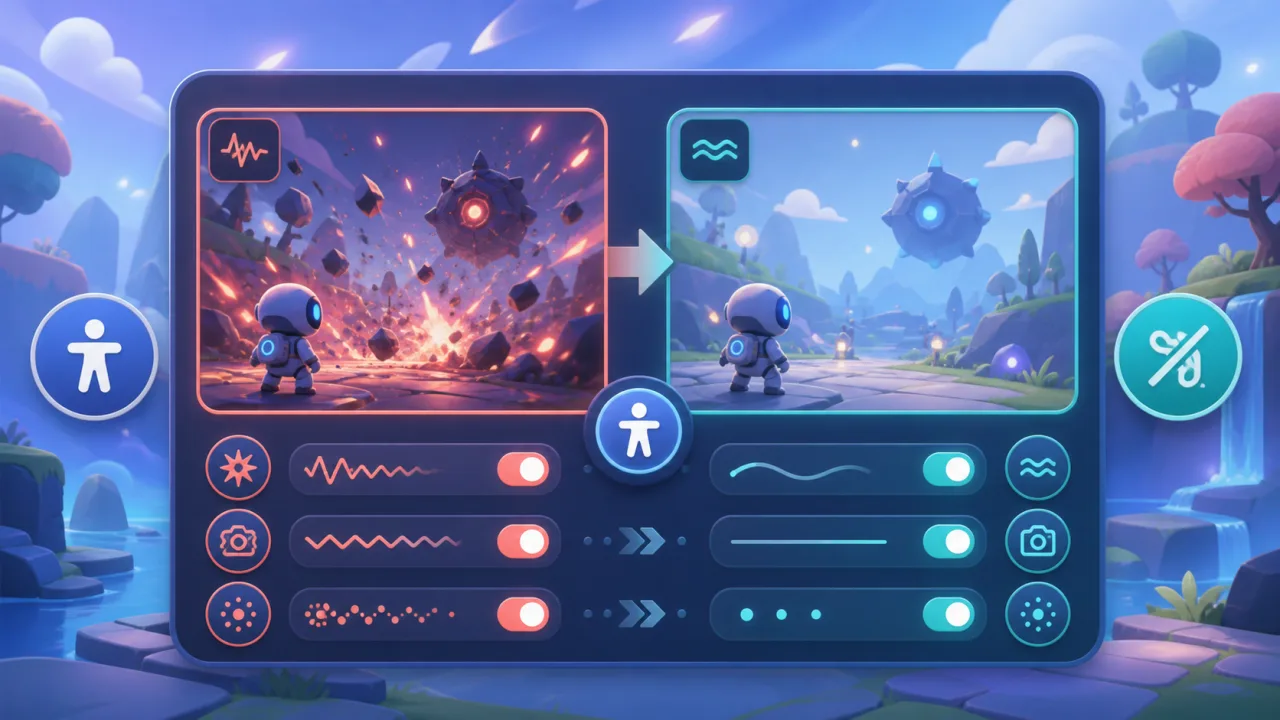
Reduced-motion settings let players enjoy an HTML5 game without unnecessary camera movement, flashing transitions, or dense particle effects. A strong implementation preserves gameplay information while replacing motion that can distract, disorient, or cause discomfort.
This guide covers a practical browser-game architecture, from detecting system preferences to testing alternate effects. It complements accessible audio settings and keyboard remapping as part of one accessibility menu.
Treat reduced motion as a design mode
A global animation-speed multiplier is rarely enough. Slowing a camera pan can increase exposure to troublesome movement, while removing every animation can hide important feedback. Define a reduced presentation for each effect category and preserve the original cue's meaning.
- Replace camera shake with a border pulse or optional haptic cue.
- Replace zoom and parallax with a stable cut or short crossfade.
- Reduce particle count, travel distance, and lifetime.
- Keep essential enemy, hazard, and timing cues visible.
- Avoid fast backgrounds behind stationary interface text.
Respect the system preference on first launch
Browsers expose prefers-reduced-motion: reduce. Use it as the initial default only when the player has not chosen an in-game setting. Offer Follow System, Reduced Motion, and Full Motion so the player remains in control.
const prefersReduced = window.matchMedia(
  "(prefers-reduced-motion: reduce)"
).matches;
const motionMode = savedPreference ?? (prefersReduced ? "reduced" : "full");
If the operating-system preference changes, update only while the player is following the system value. Preserve explicit choices until reset.
Create one motion policy
Expose a motion-policy service instead of checking the preference independently in every scene. Gameplay, menus, tutorials, advertisements, and transitions should use one source. The policy can provide camera-shake intensity, transition type, parallax depth, particle density, flash opacity, UI spring strength, and maximum autoplay movement.
Emit a change event so active effects adapt safely. Apply the setting before the first animated screen to avoid a burst of full motion during startup.
Stabilize the camera first
Camera shake, head bob, recoil, automatic orbiting, rapid zoom, and forced field-of-view changes are common discomfort triggers. In reduced mode, anchor the camera to a predictable reference, shorten necessary pans, and provide skip controls for cinematic movement.
When movement communicates damage or impact, replace it with several cues: a color-safe edge pulse, sound with separate volume control, a concise icon, or optional haptics. Never rely on a single cue.
Replace spatial transitions thoughtfully
Large slides, spins, flips, and zooms can become short opacity fades or direct state changes. Keep fades brief so the interface remains responsive and avoid chaining several transitions after one action.
For UI components, prefer border, contrast, or shadow changes instead of bouncing and elastic overshoot. Maintain focus location when panels change so keyboard and screen-reader users do not lose context.
Control particles, flashes, and backgrounds
Reduce decorative particles while preserving projectiles and hazards that affect play. Cap simultaneous effects, shorten trails, and avoid particles moving toward the camera. Decorative loops can pause or switch to still artwork.
Reduced motion does not automatically solve flashing. Add a photosensitivity-safe option when needed, limit high-contrast flashes, and pair every visual alert with another cue.
Keep gameplay fair and readable
Alternate effects must not change collision timing, enemy behavior, cooldowns, or competitive outcomes. Separate simulation from presentation. A reduced explosion can use fewer particles but must retain the same hit area and readable duration.
Test whether anticipation, impact, direction, and completion remain clear. In rhythm or reaction games, preserve exact timing markers even when backgrounds are simplified.
Save and synchronize preferences
Store the selected mode with a schema version and load it before the first animated scene. Guests can use local storage; signed-in players may synchronize through player profiles. Validate loaded values and fall back safely when a profile is old or malformed.
If assets differ by mode, preload only what is needed. Use the strategy in making HTML5 games work offline so the preference stays reliable without a connection.
Design a clear settings interface
Explain what changes: camera shake, parallax, transitions, and particles. Provide a small preview that stops when the panel loses focus and never forces the player to watch the full-motion example.
The control must work with keyboard, gamepad, touch, and assistive technology. Preserve visible focus, use large targets, announce selected states, and do not use animation as the only confirmation.
Test every scene and device class
- Verify system preference behavior in supported browsers.
- Test menus, loading, gameplay, cutscenes, rewards, and ads.
- Review camera movement, parallax, particles, flashes, and auto-scrolling.
- Switch modes during active effects and confirm a stable change.
- Reload, play offline, and sign in elsewhere to verify persistence.
- Test low frame rates so reduced effects stay clear.
- Invite motion-sensitive players to review comfort and readability.
Include the broader checks in mobile browser optimization, because small screens and close viewing distance change the experience.
Release checklist
- System preference supplies the initial default.
- Players can override and reset at any time.
- One policy covers gameplay, menus, and transitions.
- Camera motion, particles, parallax, and flashes have alternatives.
- Simulation and competitive timing remain unchanged.
- The preference loads before animation and persists safely.
Reduced motion works best when designed alongside the original effect. Preserving information while calming presentation makes an HTML5 game more comfortable without making it less expressive or playable.