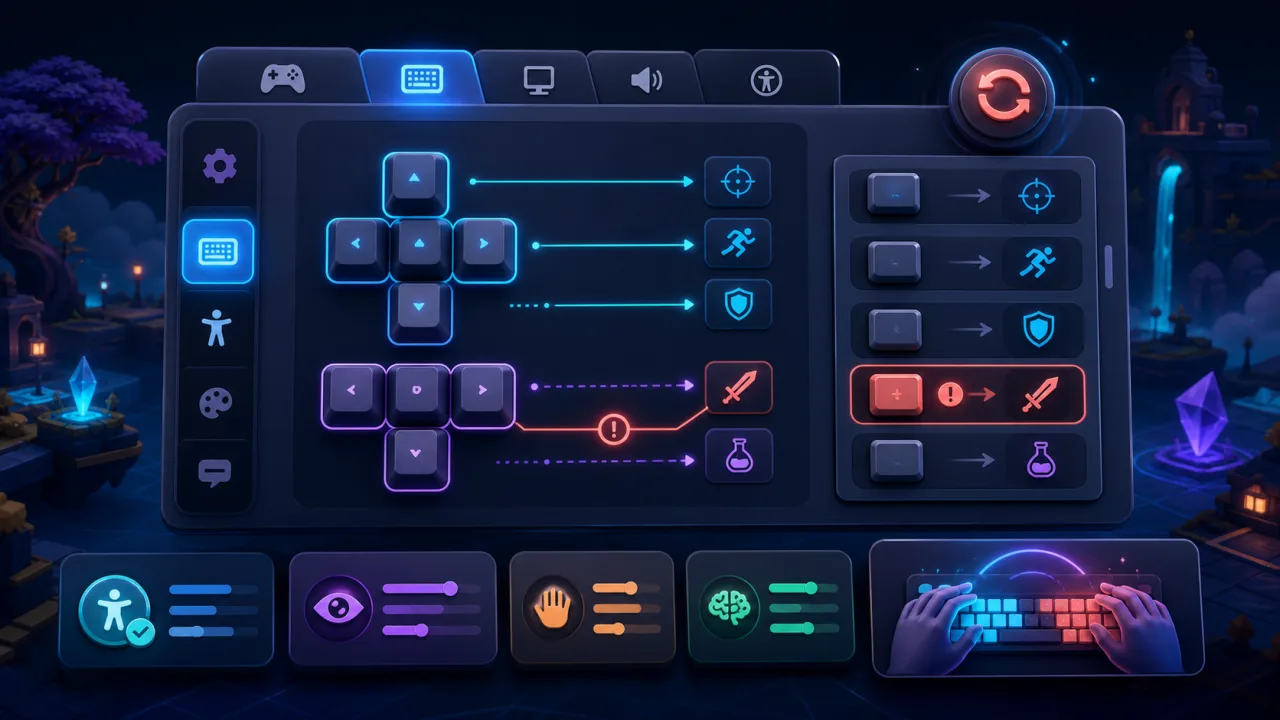
Keyboard remapping lets players choose controls that fit their keyboard, abilities, and play style. A reliable implementation needs more than a “press any key” dialog: it must capture input safely, prevent conflicts, preserve accessible navigation, save preferences, and keep on-screen prompts in sync.
This guide covers a practical browser-based architecture for HTML5 games. It pairs naturally with reliable gamepad support and the broader mobile considerations in making HTML5 games work better on mobile browsers.
Start with actions, not hard-coded keys
Game logic should ask whether an action is active, not whether a specific key was pressed. Define actions such as move left, jump, interact, pause, and open inventory. A binding profile maps each action to one or more physical inputs. This separation lets the same gameplay code support keyboard, gamepad, touch, and future input devices.
const bindings = {
  moveLeft:  [{ device: "keyboard", code: "ArrowLeft" }],
  moveRight: [{ device: "keyboard", code: "ArrowRight" }],
  jump:      [{ device: "keyboard", code: "Space" }],
  pause:     [{ device: "keyboard", code: "Escape" }]
};
Use KeyboardEvent.code for physical key position when consistent movement controls matter across keyboard layouts. Use KeyboardEvent.key when the typed character is meaningful. Explain the choice in settings so players are not surprised when switching layouts.
Design a clear remapping flow
Show a list of actions with current primary and secondary bindings. When the player chooses an action, enter a dedicated capture mode with a visible prompt. Ignore the click or key that opened the dialog, capture the next valid input, then display a confirmation before saving.
- Pause gameplay input while the capture panel is open.
- Focus the panel and announce capture mode to assistive technology.
- Listen for one keydown event and call
preventDefault()only for the captured input. - Offer Save, Try Again, and Cancel choices.
- Restore focus to the action row after the dialog closes.
Never require a time-limited response. Players who need more time should be able to leave capture mode open until they choose a key or cancel.
Handle conflicts without erasing choices
Before saving, check whether the selected key is already assigned in the same gameplay context. A duplicate is not always wrong: one key can close a menu and pause gameplay because those actions cannot occur together. Conflicts between jump and interact during play are more likely to cause trouble.
When a real conflict exists, identify both actions and offer explicit choices: swap the bindings, replace the old binding, keep both where allowed, or cancel. Do not silently remove another mapping. Validate that essential actions remain reachable before accepting the profile.
Protect browser and accessibility controls
Some shortcuts belong to the browser or operating system. Avoid capturing combinations commonly used for closing tabs, refreshing, opening developer tools, zooming, or switching applications. Let Escape cancel capture before treating it as a binding, unless the player deliberately confirms it on a second step.
Keyboard access to the settings UI must keep working even after gameplay keys change. Tab, Shift+Tab, Enter, Space, arrow keys inside appropriate widgets, and Escape for closing dialogs should follow familiar interface behavior. Provide visible focus indicators and never make pointer input the only way to restore defaults.
Support more than one binding per action
A secondary binding helps left- and right-handed players and makes compact keyboards easier to use. Store an ordered list per action and label primary and alternate slots clearly. Allow a slot to be cleared, but prevent the final binding for required menu actions from disappearing.
Keep input contexts separate. Gameplay, menus, chat, and level editors may each interpret the same key differently. Activating one context at a time reduces accidental actions when a text field or settings panel has focus.
Save profiles safely in the browser
Serialize only the action identifiers, device type, input code, and a schema version. Local storage is sufficient for a guest player, while signed-in users may benefit from cloud synchronization. The profile model described in player profiles for an HTML5 game portal can carry these preferences between devices.
Validate loaded data against a list of supported actions and codes. If the schema is old or corrupted, migrate what is safe and fall back to defaults for missing actions. Do not let imported settings execute code or inject labels into the page.
Keep prompts synchronized with bindings
Tutorials, tooltips, pause menus, and HUD prompts should read from the active binding map. If jump changes from Space to KeyJ, every prompt should update immediately. Render a friendly label such as “J” or a small keycap icon, while retaining the underlying standardized code.
Detect the most recently used device and switch prompt sets without flicker. Use a short stability window so a drifting gamepad does not repeatedly replace keyboard prompts. For new players, integrate remappable prompts into the game onboarding flow instead of teaching hard-coded controls.
Offer useful defaults and reset options
Ship tested presets for common layouts, but do not assume every keyboard has the same physical keys. A complete reset should show the affected actions before applying. Consider separate presets for left-handed play, one-hand play, and minimal-key play when the game design supports them.
Settings should remain usable without sound, color discrimination, or precise pointer movement. Pair conflict color with an icon and text, keep targets large, and ensure the interface works at browser zoom levels up to at least 200 percent.
Test across browsers, layouts, and game states
- Test Chrome, Edge, Firefox, and Safari where the game is supported.
- Test QWERTY, AZERTY, QWERTZ, compact laptop, and external keyboards.
- Verify key repeat, simultaneous keys, modifier keys, and lost-window focus.
- Open chat or a name field and confirm gameplay does not react while typing.
- Reload the page and confirm saved bindings and prompts are restored.
- Disconnect and reconnect a gamepad without breaking keyboard control.
- Navigate the entire settings flow using only the keyboard and a screen reader.
Release checklist
- Gameplay reads semantic actions rather than hard-coded keys.
- Capture mode is visible, cancellable, and free of time pressure.
- Conflicts are explained and resolved explicitly.
- Browser shortcuts and accessible menu navigation remain protected.
- Profiles are versioned, validated, and recoverable with safe defaults.
- All prompts update from the active binding map.
Good remapping is invisible once configured: the game simply responds the way the player expects. Treat it as an input-system feature and an accessibility feature, test it through every game state, and players gain control without creating maintenance problems for the portal.