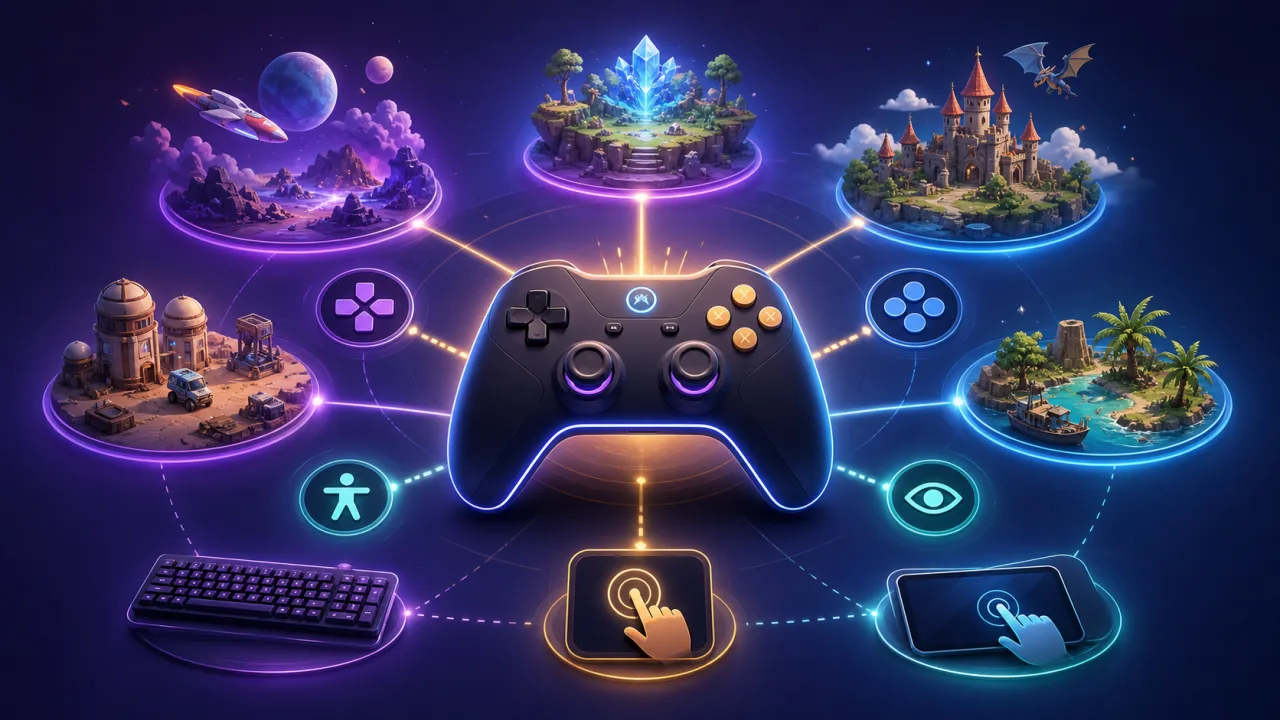
Gamepad support can make an HTML5 portal feel closer to a console while improving comfort for players who cannot or do not want to use a keyboard or touchscreen. The hard part is not detecting a controller; it is creating predictable mappings, handling connection changes, preserving alternatives, and making support clear before a game starts.
Define the support promise
Decide whether the portal merely reports controller compatibility or also provides a shared input layer. List supported game types, browsers, and controller capabilities. Promise only what the portal and each game can verify.
Keep keyboard and touch alternatives
A controller must expand choice, not replace accessible input. Every essential action should still work with keyboard and, where appropriate, touch. The responsive guidance in making HTML5 games work better on mobile browsers remains important.
Understand browser activation rules
Browsers may expose a gamepad only after the user presses a button while the page is focused. Show a neutral “press any button” step after an explicit player action. Do not repeatedly poll for devices before the player chooses to play.
Detect connection changes
Listen for connect and disconnect events, but also verify the current device list during the game loop. Bluetooth controllers can sleep or change indexes. Pause safely or offer another input method when the active device disappears.
Use a canonical action map
Games should consume actions such as move, jump, confirm, cancel, pause, and menu rather than raw button indexes. An adapter maps each controller to those actions. This keeps gameplay code stable and makes remapping possible.
Respect standard and nonstandard layouts
The standard mapping covers many modern controllers, but not all devices report it consistently. Maintain tested profiles for common nonstandard layouts and provide a calibration flow for unknown devices. Never identify support from a brand name alone.
Handle analog sticks correctly
Apply a configurable dead zone, normalize values outside it, and consider a response curve for precision. Avoid drift by sampling continuously during active play. Digital games can convert stick movement to directions only after crossing a clear threshold.
Support directional pads and axes
Some controllers expose a directional pad as buttons; others may expose unusual axes. Normalize both into the same movement actions. Test diagonals and opposite-direction conflicts so menus and gameplay behave consistently.
Prevent repeated menu actions
A held button should not race through every menu item. Detect the transition from released to pressed, then apply a deliberate repeat delay for navigation. Gameplay actions may use continuous state, while confirmation actions should usually be edge-triggered.
Let players remap controls
Offer a simple remapping screen with conflict detection, reset defaults, and a way to cancel. Save mappings per controller profile and game where necessary. Always reserve a reliable route back to settings.
Show contextual button prompts
Display prompts for the active input method and switch only after a clear input event. Use generic shapes or action names when controller-specific icons could be misleading. Do not make color the only distinction.
Design accessible settings
Allow sensitivity adjustment, stick inversion, vibration control where supported, hold-versus-toggle choices, and alternatives for rapid tapping. Make settings reachable with keyboard and screen readers at the portal level.
Handle focus and embedded games
An iframe may not receive input until the player interacts with it. Give the game an obvious focus state and pause when focus moves to portal navigation or an overlay. Do not let controller input trigger both the game and the surrounding page.
Manage pause and system actions
Choose one predictable pause action, debounce it, and prevent accidental browser navigation. If the controller disconnects during active play, pause where the game rules allow and explain how to resume.
Integrate support into game pages
Show a verified controller-support label, setup instructions, and fallback controls before launch. Keep compatibility data current alongside the SEO and usability practices in optimizing individual game pages.
Test across browser and device combinations
Cover major desktop browsers, wired and Bluetooth connections, multiple controllers, reconnects, sleep/wake behavior, and private browsing. Test low frame rates because missed transitions often appear under load.
Measure without fingerprinting
Track whether controller mode was activated, mapping failures, disconnects, remapping completion, and session success. Avoid storing raw device identifiers that could become a fingerprint. Aggregate profiles into broad compatibility categories.
Connect onboarding to the active input
Teach one controller action when it becomes useful and let the player try it immediately. Do not show keyboard instructions after a controller becomes active. Apply the approach from better HTML5 game onboarding.
Publish a compatibility process
Give developers a small test harness and checklist for declaring controller support. Require action mapping, pause behavior, fallback input, remapping, and disconnect recovery before adding the support label.
Launch with a practical checklist
- Define canonical actions instead of raw indexes.
- Support connection, reconnection, and focus changes.
- Normalize sticks, pads, and nonstandard layouts.
- Provide remapping and accessible alternatives.
- Show verified compatibility on game pages.
- Test real controllers across browsers.
- Measure failures without device fingerprinting.
Reliable gamepad support is a system, not a badge. When the portal exposes honest compatibility, games share predictable actions, and players can remap or fall back safely, browser play becomes more comfortable without sacrificing accessibility.