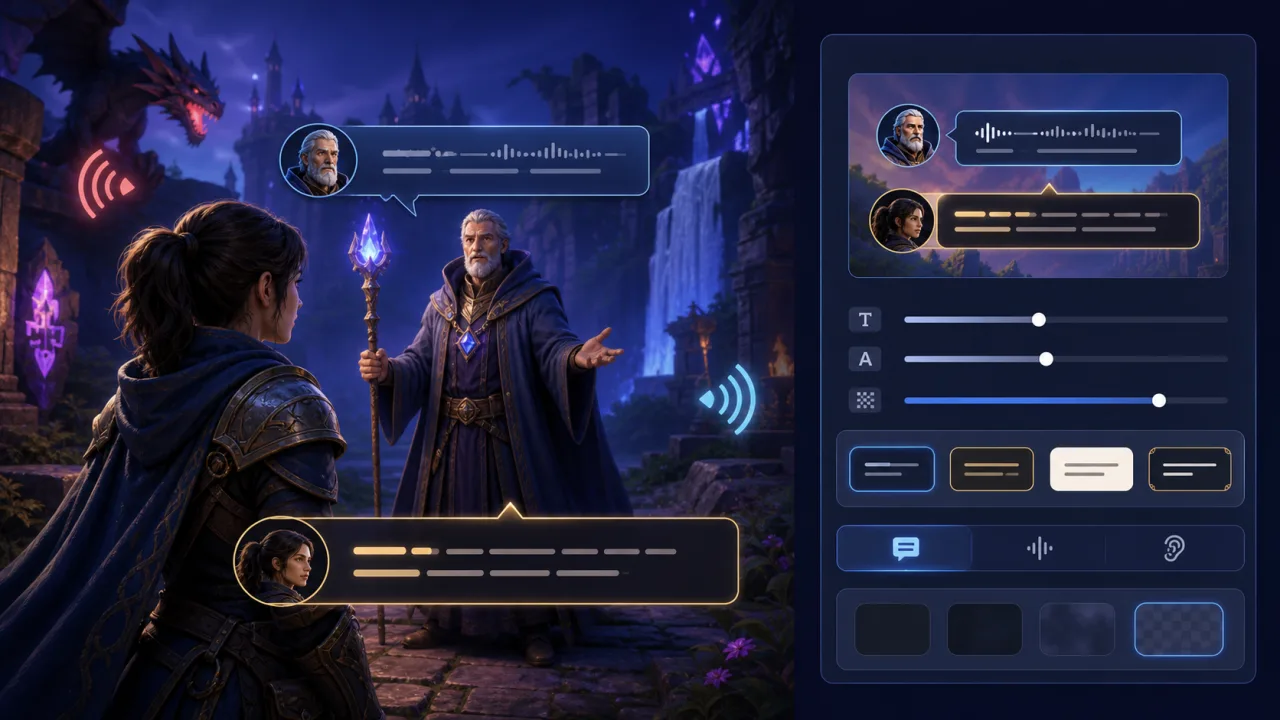
Subtitle and caption settings let players follow dialogue and important sound cues without depending on perfect hearing, headphones, or a quiet room. A good HTML5 game treats captions as a customizable information layer with readable timing, speaker context, and sound-effect cues—not as plain text pasted over the action.
This guide covers the design and implementation decisions that make browser-game captions useful across desktop and mobile screens. It separates dialogue subtitles from closed-caption information while keeping both under clear player control.
Define subtitles and captions separately
Subtitles usually transcribe spoken dialogue. Closed captions can also describe meaningful non-speech audio such as alarms, footsteps, doors, creature calls, and music cues. Your settings should make that difference understandable without forcing every player to display the same amount of information.
Offer at least an off state and a dialogue state. Games with audio-dependent mechanics should add a full captions state that includes essential sound effects and directional context.
Build a structured cue format
Store each cue as data rather than embedding text directly in scene code. A useful cue contains an identifier, start and end time, localized text key, speaker identifier, cue type, priority, and optional direction.
{
  "id": "scene-cue",
  "start": 12.4,
  "end": 15.8,
  "speaker": "guide",
  "type": "dialogue",
  "textKey": "chapter.guide.warning"
}
Keep localized text separate from timing metadata. This lets translators expand a line without duplicating scene logic and allows timing adjustments without editing every language file.
Synchronize with game time
Captions should follow the same timeline as the audio and gameplay state. Pause them when the game pauses, resynchronize after a seek or cutscene skip, and handle browser-tab suspension gracefully. Avoid depending only on chained timeouts, which can drift when the browser throttles an inactive tab.
Use the media element's playback time for video and audio scenes. For engine-driven dialogue, compare cues with the game's authoritative clock on every update and activate only the cues that belong to the current scene state.
Choose readable placement
Place dialogue near the lower center by default, but reserve space for touch controls, inventory bars, and browser safe areas. Do not cover aiming reticles, interaction prompts, or important hazards. On narrow screens, constrain the caption width and allow multiple short lines rather than shrinking text until it becomes unreadable.
Give captions a stable semi-opaque background or strong edge treatment. The techniques in high-contrast visual settings help maintain separation over both bright and dark game scenes.
Let players customize presentation
A practical settings panel should include text size, background opacity, and a small set of tested styles. Some games also benefit from speaker names, speaker colors, or an optional caption box position. Preview changes immediately with a sample that contains dialogue and a sound-effect cue.
- Text size: use a few dependable steps rather than a difficult freeform scale.
- Background: offer opaque and semi-opaque choices with guaranteed readability.
- Speaker cues: use names, icons, or borders in addition to color.
- Position: avoid presets that collide with core HUD elements.
Do not link larger captions to browser zoom or the entire interface scale. Players may need large dialogue text without changing every control.
Identify speakers without color alone
Speaker color can help, but it is not sufficient by itself. Pair it with a speaker name, portrait, border shape, or consistent icon. For off-screen speakers, add a small directional marker only when direction matters to play.
Keep decorative portraits optional on small screens. The text and speaker identity must remain understandable when the layout has little room.
Caption meaningful sounds
Do not caption every ambient noise. Prioritize sounds that communicate danger, objectives, nearby characters, state changes, or story information. A useful sound cue is concise and specific: it tells the player what happened and, when relevant, where it happened.
Directional captions can use arrows or edge indicators, but they should not pretend to provide exact location when the audio system only knows left or right. Test them alongside the independent options described in accessible audio settings for HTML5 games.
Control duration and reading load
Keep a cue visible long enough to read at a comfortable pace, with minimum and maximum durations. Long speeches should be split at natural phrase boundaries. Avoid showing several dialogue lines from different speakers in one undifferentiated block.
When cues overlap, prioritize essential dialogue and gameplay sounds. Stack only a small number, group repeated effects, and expire stale low-priority ambience. A short recent-captions history can help players recover a missed line without freezing the action.
Handle localization early
Translated text can be much longer or shorter than the source. Test line wrapping, punctuation, names, right-to-left scripts, and languages that require different fonts. Never bake words into caption-background images.
Give translators context for speaker, emotion, and sound type. Keep a stable cue identifier so localization updates do not break timing or analytics.
Separate captions from motion preferences
Captions may use subtle transitions, but they should remain usable when animation is reduced. Avoid bouncing, flashing, or rapidly sliding text. If the player enables the option from reduced-motion settings, switch caption transitions to a simple fade or instant appearance.
Likewise, keyboard navigation for the caption settings panel should follow the focus and remapping approach in keyboard remapping for HTML5 games.
Save and sync the preference
Apply settings immediately and store them locally for guest players. If your portal has accounts, save caption mode and presentation choices with the player's preference data so they follow the player across devices. The profile architecture in player profiles for an HTML5 game portal provides a natural place for these values.
Load the preference before the first cutscene or voice line. Defaulting to captions on can be helpful for first-time players, provided they can change the mode easily.
Test every gameplay context
Review conversations, combat, tutorials, cutscenes, pause menus, failure screens, and scenes with overlapping audio. Test with sound muted, with dialogue volume low, and in a noisy room. Confirm that captions remain synchronized after pause, background-tab suspension, connection recovery, and a skipped scene.
Mobile testing matters because caption boxes compete with touch controls and smaller viewports. Use the layout checks in HTML5 games on mobile browsers and test portrait warnings, landscape play, browser chrome, notches, and safe areas.
Quality checklist
- Separate dialogue subtitles from full sound captions.
- Store cues as structured, localizable data.
- Synchronize cues to authoritative media or game time.
- Offer tested size, background, and speaker-identification options.
- Use names, icons, or shapes in addition to speaker colors.
- Caption meaningful sounds without flooding the screen.
- Respect reduced-motion, keyboard, mobile, and profile preferences.
- Test pause, skip, tab suspension, localization, and overlapping cues.
Captions work best when they are designed with the game rather than added at the end. Treat them as a timed, localizable interface system, give players control over presentation, and verify them in the busiest scenes where missing information matters most.