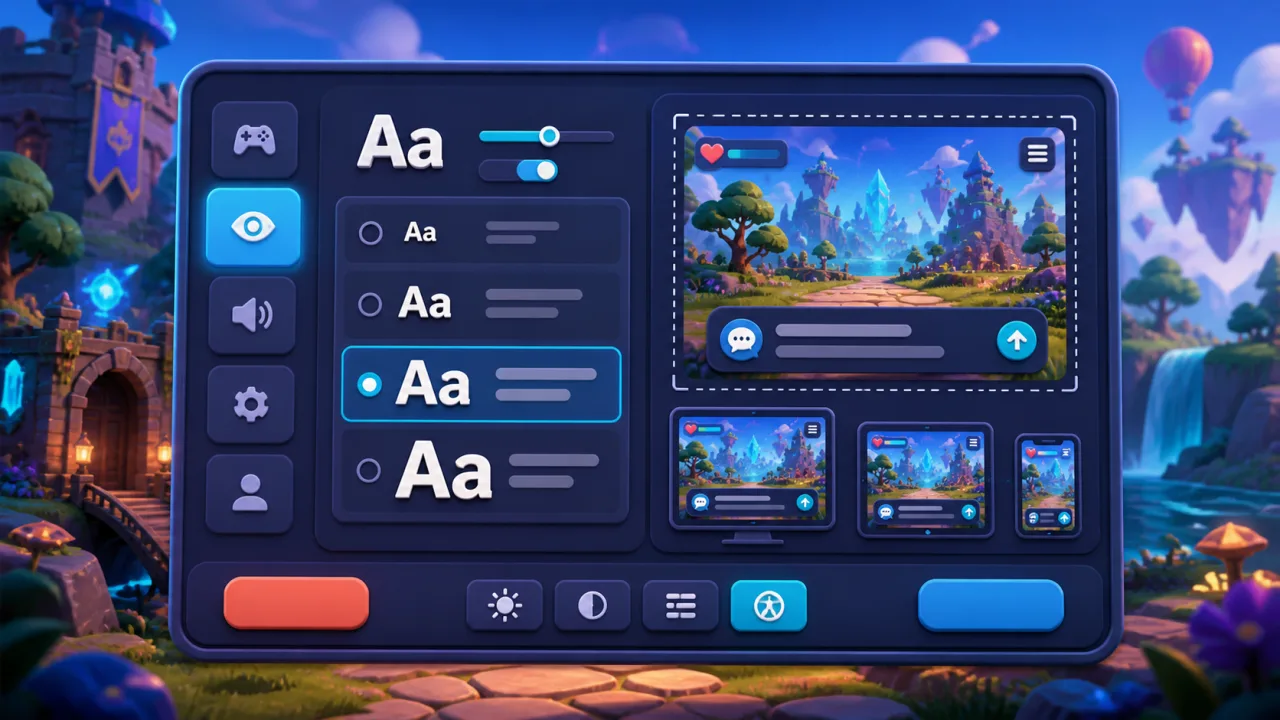
Readable game text should adapt to the player, not force every player to accept the same size and spacing. A well-designed text scaling setting improves menus, tutorials, subtitles, inventories, and status messages without changing gameplay balance. This guide explains how to add scalable, readable text to an HTML5 game while keeping layouts stable on phones, tablets, and desktop screens.
Separate text size from browser zoom
Browser zoom can help, but it enlarges the entire page and may move the canvas, controls, or surrounding interface. An in-game text scale changes only the interface elements that need it. Offer a small set of predictable choices such as 100, 125, 150, and 175 percent. Clear steps are easier to test than an unrestricted slider and make it simpler to preserve intentional layouts.
Text scaling should work alongside the player's browser and operating-system preferences. Do not disable zoom, and avoid viewport settings that prevent pinch zoom on mobile devices.
Build the scale around a CSS custom property
Define one root value for interface text, then calculate component sizes from it. For DOM-based menus, a CSS custom property keeps the implementation easy to audit:
:root {
  --game-text-scale: 1;
}

.game-ui {
  font-size: calc(1rem * var(--game-text-scale));
}

.game-ui h2 {
  font-size: 1.5em;
}
Use relative units such as rem and em for text and related spacing. Avoid scaling every pixel dimension blindly. Icons, panels, and touch targets may need independent minimum sizes so that larger text has room to wrap instead of overflowing.
Design containers that can grow
The hardest part of text scaling is usually the surrounding layout. Replace fixed-height cards and buttons with flexible minimum heights and sensible padding. Allow labels to wrap, use grid or flex layouts that can expand, and keep important controls visible when a description becomes two or three lines.
Limit paragraph width to a comfortable reading measure and increase line height as text grows. Very wide blocks are difficult to follow even when the font is large. Avoid truncating essential instructions with ellipses; provide enough room or an expandable detail view.
Handle canvas-rendered text explicitly
If your game draws text inside a canvas, changing CSS alone will not resize it. Apply the selected scale to the font size before measuring and drawing each line. Recalculate line breaks, panel bounds, and hit areas whenever the setting changes or the viewport rotates.
Keep interface text in a dedicated layout layer so gameplay coordinates do not become dependent on font size. For complex menus, HTML overlays can offer better reflow and assistive-technology support than drawing every label on the canvas.
Create a useful readability menu
Place the setting under Accessibility or Display and show an immediate preview. Use labels such as Default, Large, Extra Large, and Maximum together with their percentage values. The preview should include a heading, body text, a button label, and a short status message so the player can judge different content types.
Text size is only one part of readability. Pair it with high-contrast choices using the workflow in How to Add High-Contrast Settings to HTML5 Games. For dialogue and audio cues, coordinate the same typography rules with Subtitle and Caption Settings for HTML5 Games.
Save the preference safely
Store the selected scale in local storage or the player's account settings, then apply it before the main menu becomes visible. Early application prevents a distracting flash from default to large text. Validate the stored value against the supported options rather than inserting arbitrary input into CSS.
Also provide a Reset to Default action. If storage is unavailable or blocked, keep the current choice for the session and let the player know only if persistence is important.
Respect safe areas and mobile controls
Larger labels can collide with notches, browser controls, virtual joysticks, or action buttons. Test the maximum scale at narrow portrait widths and short landscape heights. Apply safe-area insets where supported, and make scrollable menus keyboard and touch friendly.
Do not shrink text automatically just to force it back into a fixed panel. Let the panel grow, wrap the copy, or offer scrolling. The mobile layout guidance in How to Optimize HTML5 Games for Mobile helps keep controls reachable across varied aspect ratios.
Test every kind of game text
Create an inventory of text surfaces: splash screens, consent prompts, navigation, HUD labels, tutorials, dialogue, subtitles, inventory descriptions, error messages, multiplayer notices, pause menus, and end-of-game summaries. Check each at every supported scale.
- Verify that no essential text is clipped, overlapped, or hidden behind the canvas.
- Confirm that buttons remain at least as easy to tap at larger sizes.
- Test keyboard focus indicators and controller navigation after reflow.
- Try long localized strings and languages with different character widths.
- Rotate mobile devices and resize desktop windows while the menu is open.
- Check that saved preferences survive a reload and can be reset.
Automated visual tests can catch obvious overflow, but manual playtesting is still important. A layout may technically fit while requiring excessive scrolling during a time-sensitive part of the game.
Avoid common implementation mistakes
- Scaling text without remeasuring canvas line breaks.
- Using fixed-height buttons that clip wrapped labels.
- Changing HUD text size but ignoring tutorials and error messages.
- Blocking browser zoom because the game has its own setting.
- Using color alone to indicate the active scale.
- Resetting the preference after every session.
Readability features should also avoid unnecessary animation when menus reflow. If transitions make content difficult to track, follow the patterns in Reduced Motion Settings for HTML5 Games and update the layout instantly.
Ship the feature in clear stages
- Define the supported scale steps and a shared CSS variable.
- Convert essential interface text to relative units.
- Make containers flexible and allow meaningful copy to wrap.
- Update canvas measurement and drawing functions.
- Add a preview, persistence, and reset control.
- Test maximum scale on every screen size and input method.
- Include long translations and all temporary messages in QA.
A text scaling option is successful when players can choose a comfortable size and continue playing without fighting the interface. Treat reflow, persistence, safe areas, and localization as part of the feature from the beginning, and the result will be more readable without compromising the game's visual identity.