Google Login gives players and approved administrators a faster way to sign in. This guide shows every step required to connect a GamePortalScript PRO website to Google Cloud without exposing your Client Secret.
Video tutorial
1. Open Google Cloud Credentials
Open Google Cloud Credentials, create or select a project, and configure the Google Auth Platform branding and audience when Google asks for them.
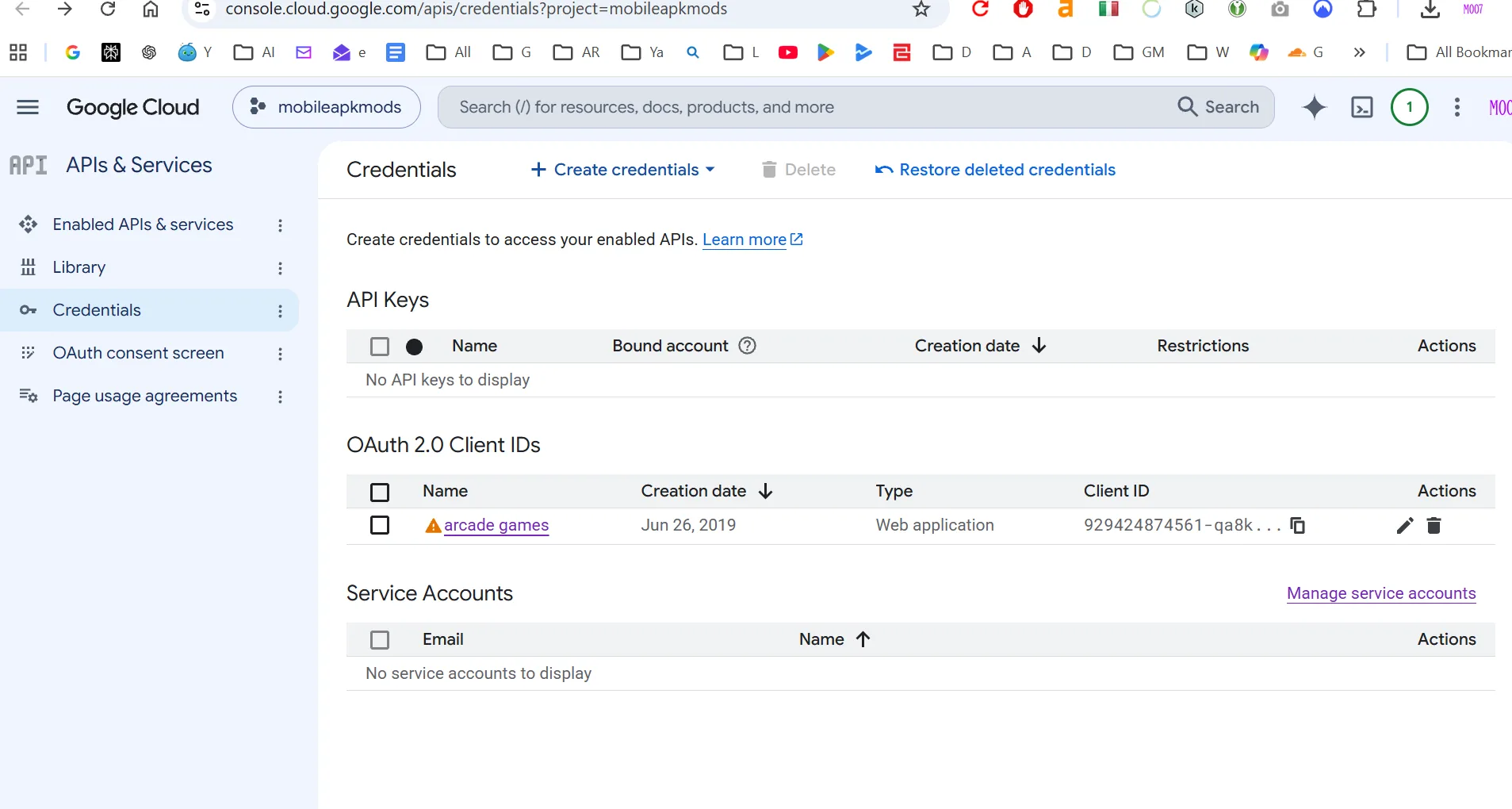
2. Create a Web application client
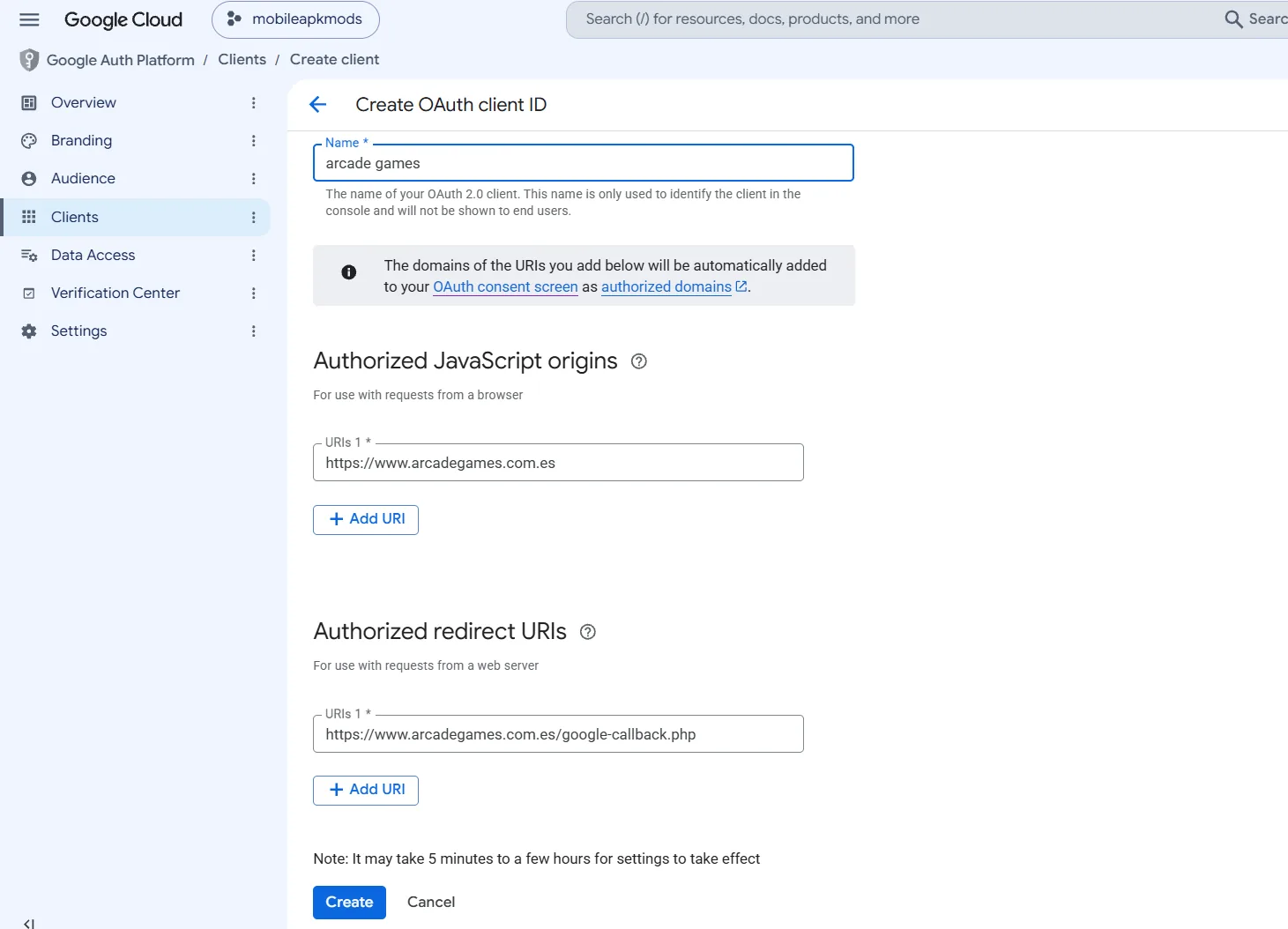
- Choose Web application as the application type.
- Enter a recognizable name, such as your website name.
- Under Authorized JavaScript origins, add only your website origin, for example
https://your-domain.com. Do not add a path or trailing slash. - Under Authorized redirect URIs, paste the exact callback URL displayed on the CMS PRO page. It must end in
/google-callback.php. - Click Create.
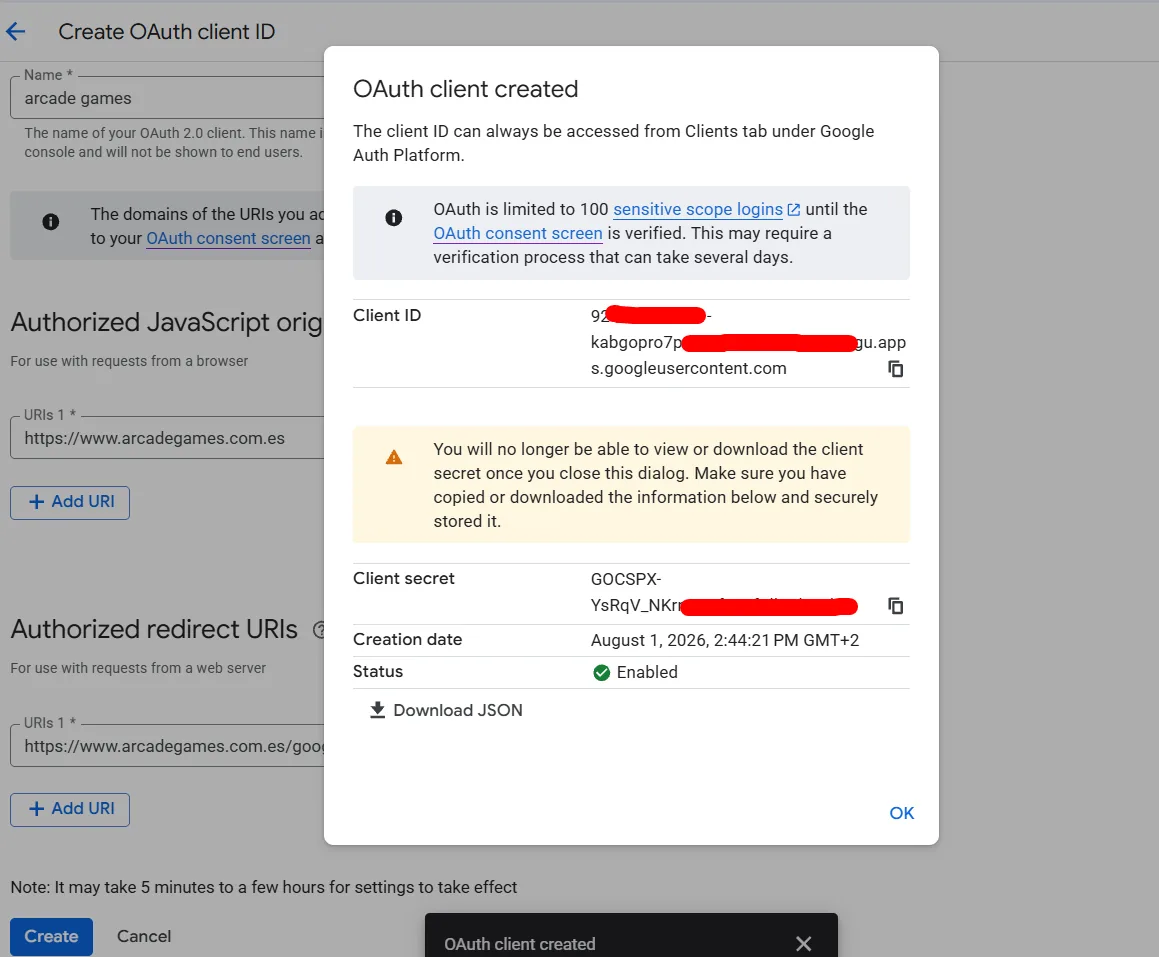
3. Copy the credentials immediately
Copy both the Client ID and Client Secret from the confirmation dialog. Google displays the full Client Secret only when it is created, so save it securely before closing the dialog.
4. Enable Google Login in the CMS
- Return to Admin → PRO Active.
- Open the Login with Google configuration.
- Paste the Client ID and Client Secret.
- Add the Google email addresses that may enter the CMS administrator panel.
- Select Login with Google and save.
- Open your public
/loginpage and test the Continue with Google button.
Common setup errors
redirect_uri_mismatch
The Authorized redirect URI in Google Cloud must match the CMS callback exactly, including HTTPS, www or non-www, and /google-callback.php.
The callback opens the homepage
Do not open google-callback.php directly. It works only after Google returns a valid authorization code and security state.
The administrator is logged in as a player
Add that exact verified Google email to the administrator-email list on the PRO page, save, and connect the account again.